之前有一台服务器使用的是LAMP架构,网站多了,访问量大的时候会出现无法响应的情况,都说nginx的性能更好一些,所以第二台服务器打算使用nginx来配置网站,在这里做个备忘,同时也可以帮助一些跟我一样的菜鸟吧。
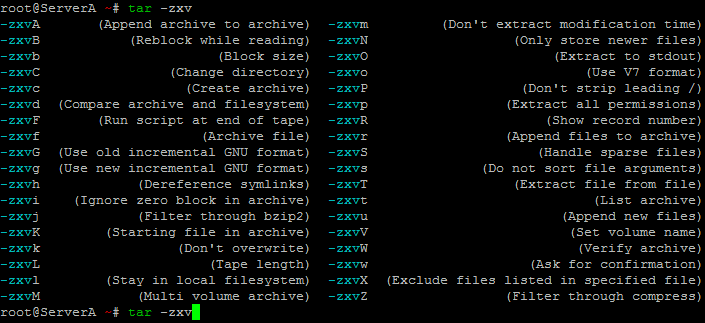
如果是debian的话,首先建议安装fish和vim这两个软件,fish是一款比较好用的shell,一般系统自带的shell都是bash,但是在自动补全,命令提示的智能化方面跟fish差太远了,同时fish在界面上也比较舒服,命令一般都是绿色,参数白色,错误的命令会显示红色,一目了然。安装方式很简单,直接
apt-get install fish
不需要多余配置就可以直接使用了,这个力荐。稍微截个图看下
debian一般都自带安装了vim,但是安装的包不是很完整,所以还是推荐各位重新安装一下比较好
apt-get install vim
安装好之后,我个人一般稍稍改下配置就够用了。
vim /etc/vim/vimrc
找到下面两行,分别将前面的;去掉让配置生效。
syntax on     #这个主要是可以实现部分代码高亮
set background=dark      #我们一般操作的时候都是通过ssh直接登录服务器,打开这个选项会让终端里的显示更加醒目。
同时在配置的最后添加一行
set nu #显示行号
当然这些只是最基本的配置,对我来说已经够用了,更多高阶使用可以自己去研究下。
开始安装LNMP了
首先编辑源文件。因为debian默认的软件仓库里nginx版本很旧,所以我们先添加一个源。这里的nginx以及php库都是比较新的。
vim /etc/apt/sources.list
添加以下两行:
deb http://packages.dotdeb.org stable all
deb-src http://packages.dotdeb.org stable all
更新key
wget http://www.dotdeb.org/dotdeb.gpg
cat dotdeb.gpg | sudo apt-key add -
更新源
apt-get update
apt-get upgrade
然后分别安装nginx,php-fpm,mysql这个过程就不赘述了,很简单。默认配置,安装mysql的时候应该会提示你输入root的密码。
apt-get install nginx php5-fpm mysql-server-5.1
安装php,可以根据需要安装
apt-get install php5-cgi php5-cli php5-common php5-curl php5-dev php5-fpm php5-gd php5-idn php5-imagick php5-imap php5-json php5-mcrypt php5-memcache php5-mhash php5-ming php5-mysql php5-ps php5-pspell php5-recode php5-snmp php5-sqlite php5-suhosin php5-tidy php5-xcache php5-xmlrpc php5-xsl php-pear php-soap
不出意外的话,这个时候已经是可以了,在nginx默认目录
/usr/share/nginx/html/添加一个info.php的文件,文件里添加
<?php phpinfo(); ?>
然后访问http://xx.xx.xx.xx/info.php 看看是否能显示就知道有没有问题了。
配置虚拟主机
nginx的主配置文件/etc/nginx/nginx.conf暂时默认就好了,不用过多设置,我也一般就是根据服务器的CPU核心数把worker_processes 的数目修改了下,我的服务器是8核,所以我的数字是8,默认好像是1吧。
user  nginx;
worker_processes  8;
添加网站配置文件,nginx配置文件的目录在/etc/nginx/conf.d/这里,我们为域名abc.com添加一个配置文件
vim /etc/nginx/conf.d/abc.com.conf
需要注意的是,所有的网站配置文件都必须以conf结尾,否则配置文件不会生效或者出错。
在配置文件abc.com.conf里输入以下内容
server {
             listen   80;
             server_name  abc.com;
             rewrite ^/(.*) http://www.abc.com/$1 permanent;
#此处是将所有abc.com的访问都变成www.abc.com
            }

 server {
             listen   80 default;
             access_log  /srv/www/abc.com/logs/access.log;
             error_log      /srv/www/abc.com/logs/error.log info;
             server_name     www.abc.com;
             root /srv/www/abc.com/public_html;

 location / {
 index index.php;
 # if the requested file exists, return it immediately
 if (-f $request_filename) {
         break;
 }

         location /nginx-status {
             stub_status on;
             access_log  off;
         }

 # all other requests go to WordPress
 if (!-e $request_filename) {
         rewrite . /index.php last;
 }
 }

 ## Images and static content is treated different
     location ~* ^.+.(jpg|jpeg|gif|css|png|js|ico|xml)$ {
       access_log        off;
       expires           30d;
       root /srv/www/abc.com/public_html;
     }

 ## Parse all .php file in the /srv/www directory
     location ~ ^.+\.php {
         fastcgi_split_path_info ^(.+\.php)(.*)$;
         fastcgi_pass   backend;
         fastcgi_index  index.php;
         fastcgi_param  SCRIPT_FILENAME  /srv/www/abc.com/public_html$fastcgi_script_name;
         include fastcgi_params;
         fastcgi_param  QUERY_STRING     $query_string;
         fastcgi_param  REQUEST_METHOD   $request_method;
         fastcgi_param  CONTENT_TYPE     $content_type;
         fastcgi_param  CONTENT_LENGTH   $content_length;
         fastcgi_intercept_errors        on;
		 fastcgi_ignore_client_abort     on;
        fastcgi_read_timeout 180;

     }
     ## Disable viewing .htaccess & .htpassword
     location ~ /\.ht {
         deny  all;
     }
}
upstream backend {
        server 127.0.0.1:9000;
}
为abc.com配置根目录
mkdir -p /srv/www/abc.com/public_html
mkdir -p /srv/www/abc.com/logs
这个时候你可以在/srv/www/abc.com/public_html里再放入一个info.php文件,然后给把这个目录赋予nginx权限
chown www-data:www-data /srv/www/ -R
重启nginx和php-fpm
/etc/init.d/nginx restart
/etc/init.d/php5-fpm restart
然后试着访问abc.com/info.php是否显示正常。
安装phpmyadmin
nginx不像apache,安装好以后可以直接通过abc.com/phpmyadmin访问,我们需要为phpmyadmin也做一个网站配置,比如可以使用mysql.abc.com访问。
安装phpmyadmin
apt-get install phpmyadmin
按提示输入mysql的账号密码就可以了,可能会提示你选择apache还是lighttpd(记不清楚了,现在没法截图)都不用选择,直接确认,还有一个貌似提示要不要创建示例数据库吧,yes or no也直接选no就可以了。
为phpmyadmin添加配置文件
vim /etc/nginx/con.f/mysql.abc.com.conf
输入以下内容
server {

        listen   80;
        server_name mysql.abc.com;

        access_log /var/log/nginx/phpmyadmin.log;

        root   /usr/share/phpmyadmin;
        index  index.php;

        location / {
        try_files $uri $uri/ @phpmyadmin;
        }

        location @phpmyadmin {
        fastcgi_pass 127.0.0.1:9000;
        fastcgi_param SCRIPT_FILENAME /usr/share/phpmyadmin/index.php;
        include /etc/nginx/fastcgi_params;
        fastcgi_param SCRIPT_NAME /index.php;
        }

        # pass the PHP scripts to FastCGI server listening on 127.0.0.1:9000
        #
        location ~ \.php$ {
        fastcgi_pass   127.0.0.1:9000;
        fastcgi_index  index.php;
        fastcgi_param  SCRIPT_FILENAME  /usr/share/phpmyadmin$fastcgi_script_name;
        include        fastcgi_params;
        }
}
重启nginx
service nginx restart
注意这里我使用是另外一个命令,跟前面的/etc/init.d/nginx restart命令效果一样。
现在应该可以通过mysql.abc.com访问phpmyadmin了。
接下来你可以自己试着安装一个wordpress了,关于wordpress的nginx配置文件,可以直接到http://wiki.nginx.org/Configuration 查看。
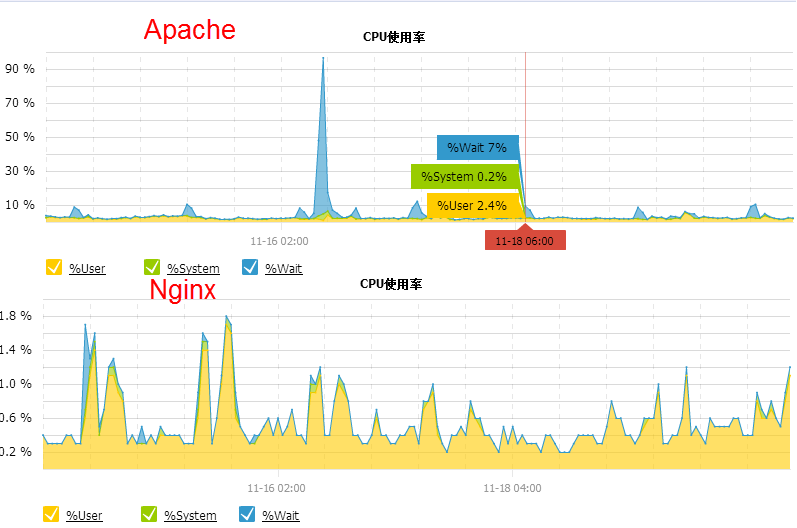
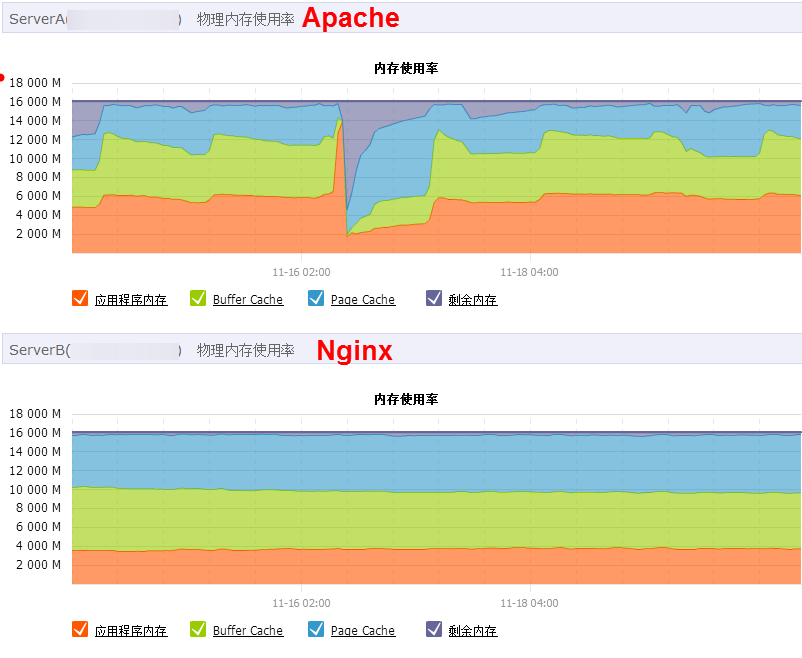
再上两台采用不同配置服务器的资源cpu和内存的占用情况,上图是apache,下图是nginx,基本都是默认配置,apache还优化过,nginx基本没做什么优化,两台服务器硬件完全一样,放的网站程序和数量也差不多。
有问题可以留言哈,文章写的仓促,可能会有小错误。